
Automatic lockfile management#
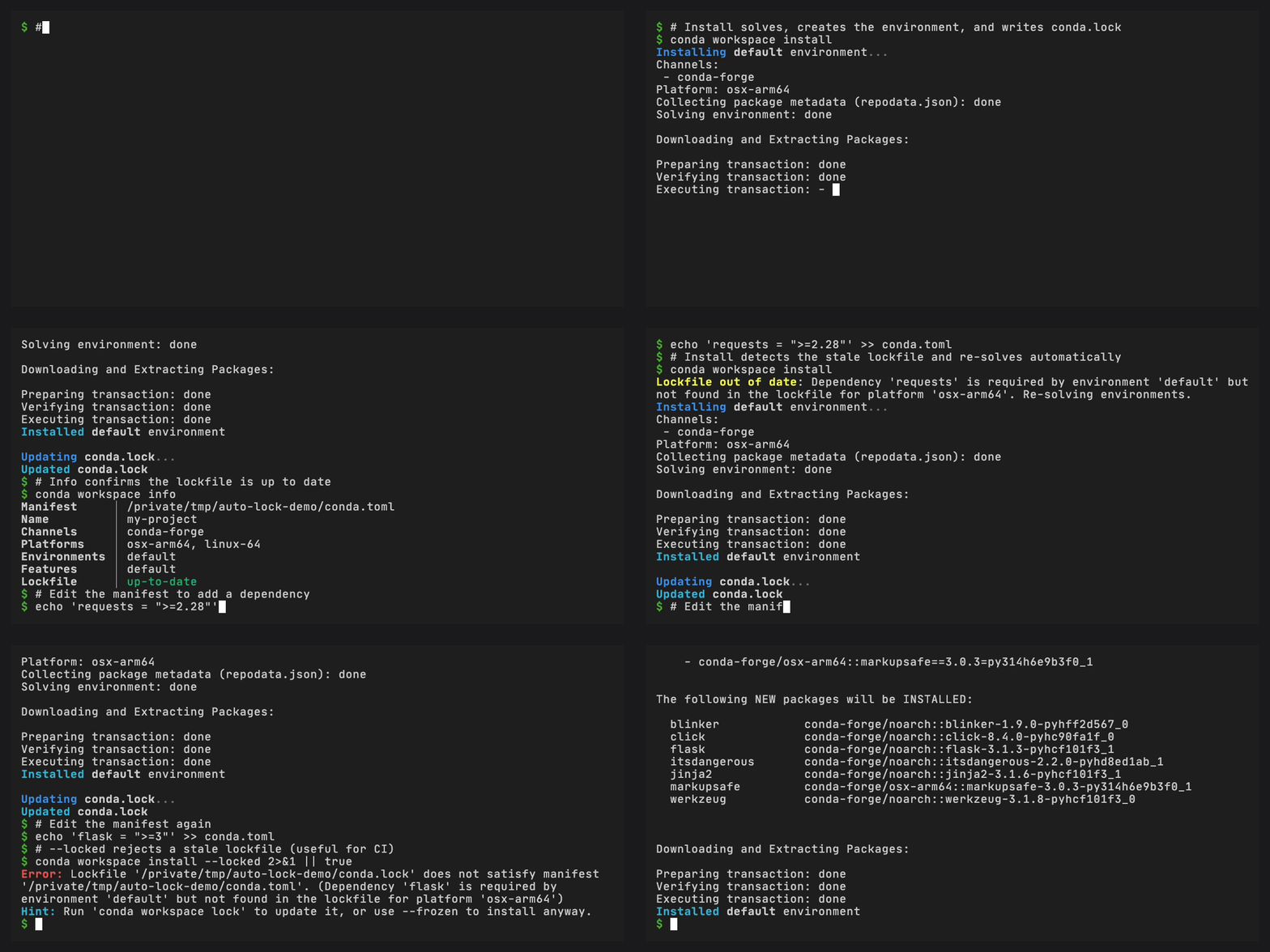
conda workspace install keeps conda.lock current without extra
commands. Follow this tutorial to check lockfile status and choose
when to update it.
Prerequisites#
conda (>= 26.3) with the conda-workspaces plugin installed
A directory in which to create the workspace
Step 1: Install creates the lockfile#
Start with a workspace that has no lockfile:
mkdir my-project && cd my-project
conda workspace init --name my-project
conda workspace add --no-lockfile-update "python>=3.12"
Run install:
conda workspace install
Because no conda.lock exists, install runs the solver, creates
the environment, and writes a fresh lockfile in one step.
Step 2: Check the lockfile status#
Use conda workspace info to see whether the lockfile is current:
conda workspace info
The Lockfile row shows one of three states:
Status |
Color |
Meaning |
|---|---|---|
|
Green |
Lockfile satisfies all manifest requirements |
|
Yellow |
Manifest has changed since the lockfile was written |
|
Red |
No |
For scripting, use the JSON output:
conda workspace info --json | jq '.lockfile_status'
# "up-to-date"
When the lockfile is out of date, the lockfile_reason field
explains why:
conda workspace info --json | jq '.lockfile_reason'
# "Dependency 'requests' is required by environment 'default' but not found in the lockfile for platform 'osx-arm64'"
Step 3: Add a dependency and see staleness detection#
Add a new dependency with conda workspace add. By default, add
writes the manifest, solves, installs, and updates the lockfile in
one step:
conda workspace add "requests>=2.28"
To see the staleness detection separately, use
--no-lockfile-update to only update the manifest:
conda workspace add --no-lockfile-update "flask>=3"
Now check the status:
conda workspace info
# Lockfile    out-of-date (Dependency 'flask' is required by ...)
Run install to trigger the re-solve:
conda workspace install
The output includes a message like:
Lockfile out of date: Dependency 'flask' is required by environment
'default' but not found in the lockfile for platform 'osx-arm64'.
Re-solving environments.
Install detects the mismatch, re-solves, installs, and updates
conda.lock. Check the status again:
conda workspace info
# Lockfile    up-to-date
Step 4: Subsequent installs skip the solver#
Run install again without changing anything:
conda workspace install
This time the lockfile already satisfies the manifest, so install uses the locked package URLs directly, without running the solver or fetching network metadata. Packages absent from the lock are removed, and only resolved manifest roots remain direct requests in prefix history. This speeds up day-to-day installs.
Step 5: Use --locked for strict mode#
The --locked flag requires a satisfiable lockfile and fails
otherwise:
# This works when the lockfile is current
conda workspace install --locked

# Add a new dep without solving to make the lockfile stale
conda workspace add --no-lockfile-update "httpx>=0.27"

# This fails with LockfileStaleError
conda workspace install --locked
The error message tells you what to do:
LockfileStaleError: Lockfile 'conda.lock' does not satisfy manifest 'conda.toml'.
(Dependency 'httpx' is required by environment 'default' but not found
in the lockfile for platform 'osx-arm64')
Run 'conda workspace lock' to update it, or use --frozen to install anyway.
Fix it by updating the lockfile first:
conda workspace lock
conda workspace install --locked
Step 6: Use --frozen to skip freshness checks#
The --frozen flag installs whatever is in the lockfile without
checking whether it satisfies the manifest. Use this when you know
the lockfile is intentionally pinned:
conda workspace install --frozen
Step 7: Force a re-solve with --no-lock#
To pick up channel updates (new package versions) without editing
the manifest, use --no-lock to bypass the lockfile entirely:
conda workspace install --no-lock
This runs the solver even when the lockfile is satisfiable. The lockfile is regenerated afterward.
Step 8: Preview lockfile operations#
Use --dry-run to validate and solve without changing the lockfile or
an environment prefix:
conda workspace lock --dry-run
conda workspace install --dry-run
conda workspace install --frozen --dry-run
Lock previews still resolve and serialize the proposed lock data.
Install previews still validate the selected manifest or lockfile. An
existing conda.lock, every environment prefix, and configured package
caches remain unchanged.
What triggers a re-solve?#
The staleness check compares the manifest against the lockfile contents, not file timestamps. It checks that:
The lockfile version matches the expected schema version
All environments declared in the manifest exist in the lockfile
Channels for each environment match between manifest and lockfile
Platforms declared in the manifest are covered in the lockfile
Dependencies for each environment on the current platform are present in the lockfile with a version that satisfies the manifest spec
These changes do not trigger a re-solve:
Editing comments or whitespace in the manifest
Reordering dependencies (same set, different order)
Changing task definitions, archive config, or activation scripts
Adding any declared platform that is absent from conda.lock makes the
lockfile stale and requires a new solve.
Summary#
Flag |
Lockfile satisfiable |
Lockfile stale |
Lockfile missing |
|---|---|---|---|
(default) |
Install from lockfile |
Re-solve + update |
Solve + create |
|
Install from lockfile |
Error |
Error |
|
Install from lockfile |
Install from lockfile |
Error |
|
Full solve |
Full solve |
Full solve |
Next steps#
CI pipeline for CI-specific lockfile behavior
Configuration reference for workspace settings
Features overview for the full feature summary