
Quick start#
Installation#
conda install -n base conda-forge::conda-workspaces
pixi global install conda-workspaces
Both methods provide the cw and ct shortcut commands.
Installing into a conda base environment also registers the
conda workspace and conda task plugin subcommands.
Your first tasks#
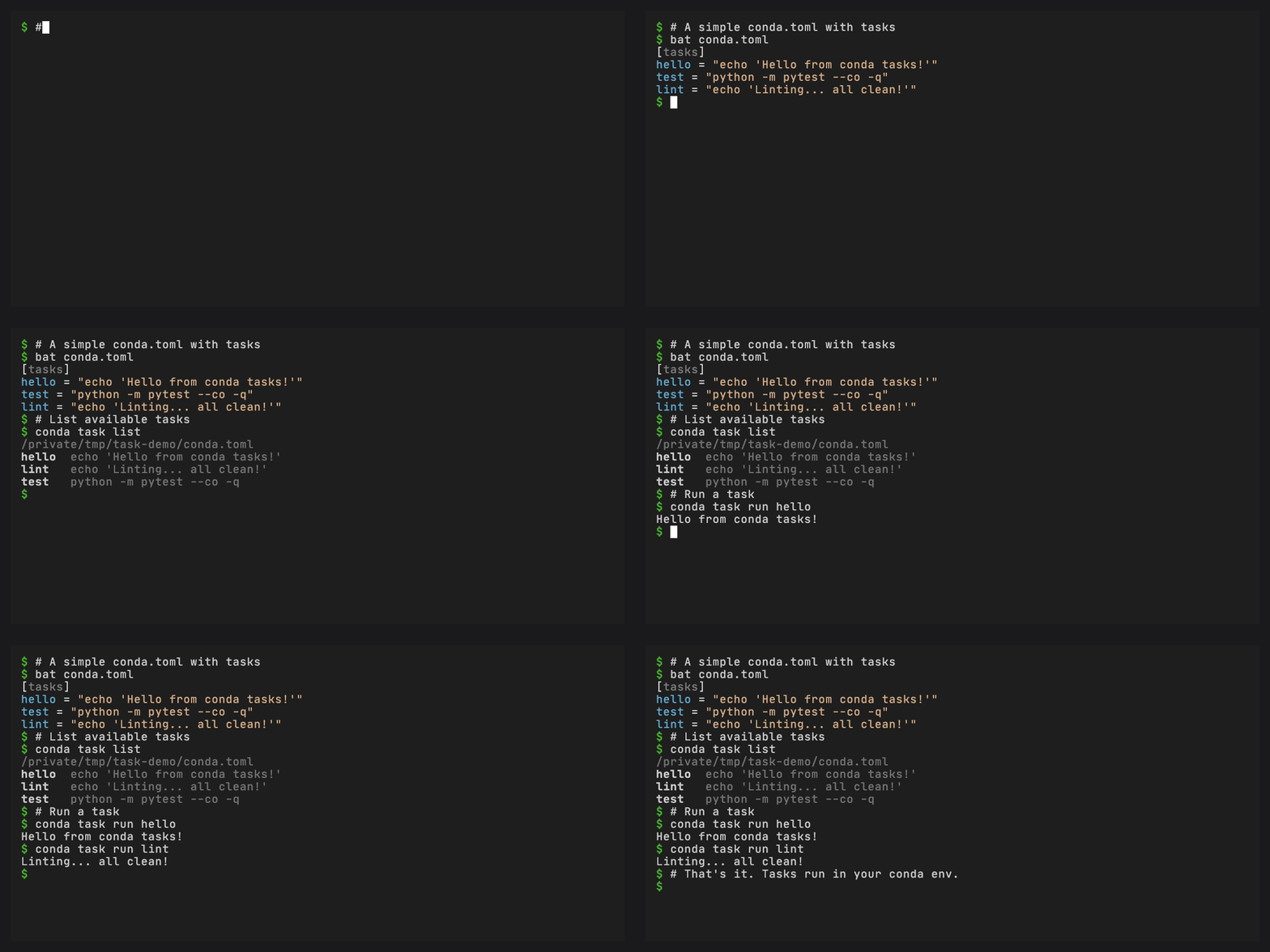
Create a task manifest named conda.toml in your working directory:
[tasks]
hello = "echo 'Hello from conda-workspaces!'"
test = { cmd = "pytest tests/ -v", depends-on = ["build"] }
build = "python -m build"
Run a task:
conda task run hello
conda task run test    # runs build first, then test
conda task list        # see all tasks
Tasks run in your current conda environment. You can start with tasks alone and add a workspace definition later.
Your first workspace#
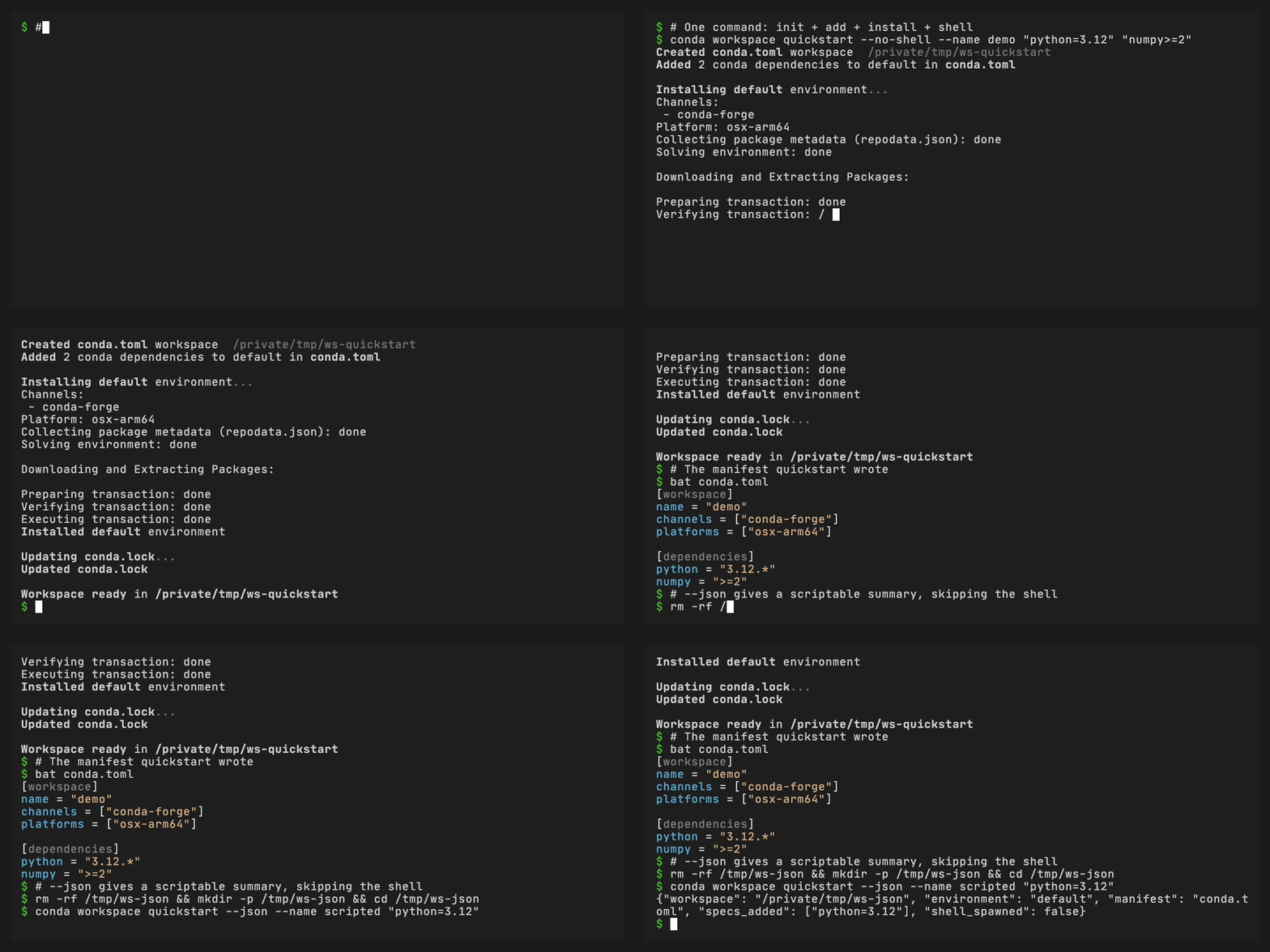
Added in version 0.4.0: conda workspace quickstart composes init, add, install, and
shell into a single bootstrap command. Pass --no-shell for CI or
--json for a scriptable summary.
To create a workspace, install its environment, and open an activated
shell, run conda workspace quickstart:
conda workspace quickstart python=3.14 numpy
# or copy an existing workspace's manifest instead of running init
conda workspace quickstart --copy ../other-workspace
# scripted / CI: skip the interactive shell, emit a JSON summary
conda workspace quickstart --no-shell --name demo "python=3.12" "numpy>=2"
conda workspace quickstart --no-shell -e dev "python=3.12" pytest
conda workspace quickstart --json --name demo "python=3.12"
quickstart runs init
(unless you pass --copy / --clone to copy an existing workspace’s
manifest), adds any specs passed on the command line, installs the
selected environment, and drops into a shell. It forwards the flags
from init (--format, --name, -c/--channel,
--override-channels, --platform), install (-e/--environment,
--force-reinstall, --locked, --frozen), and conda’s shared flags
(--dry-run, --json, --yes). Use --no-shell for CI or scripted
runs. --json implies --no-shell, silences the status banners the
nested init / add / install handlers would otherwise print, and
emits a single structured {workspace, environment, manifest, specs_added, shell_spawned} payload on stdout that you can pipe into
jq.
Positional specs are added as private dependencies of the selected
environment, including the default environment. Quickstart creates the
environment when necessary, writes the specs below
[environments.<name>.dependencies], and installs its
.conda/envs/<name> prefix. To share dependencies across environments,
run conda workspace init followed by conda workspace add without
-e/--environment.
--locked and --frozen cannot be combined with positional specs.
Adding specs changes the manifest and requires a new lock, so
quickstart rejects that combination before creating or copying a
manifest. Omit the lock mode while bootstrapping specs, then use
conda workspace install --locked or --frozen for later installs.
New workspaces inherit conda’s configured channels in their existing
order. Repeated -c/--channel values are prepended in command-line
order. Pass --override-channels with at least one -c to use only
the explicit channels. Initialization fails when no channel is
available. quickstart --copy and --clone preserve the source
manifest’s channels instead of applying these initialization options.
Inherited channel URLs are written without basic authentication,
Anaconda /t/<token>/ path segments, queries, or fragments. Keep the
credential-free channel identity in the manifest and configure authentication
through Conda outside the repository.
Manual setup#
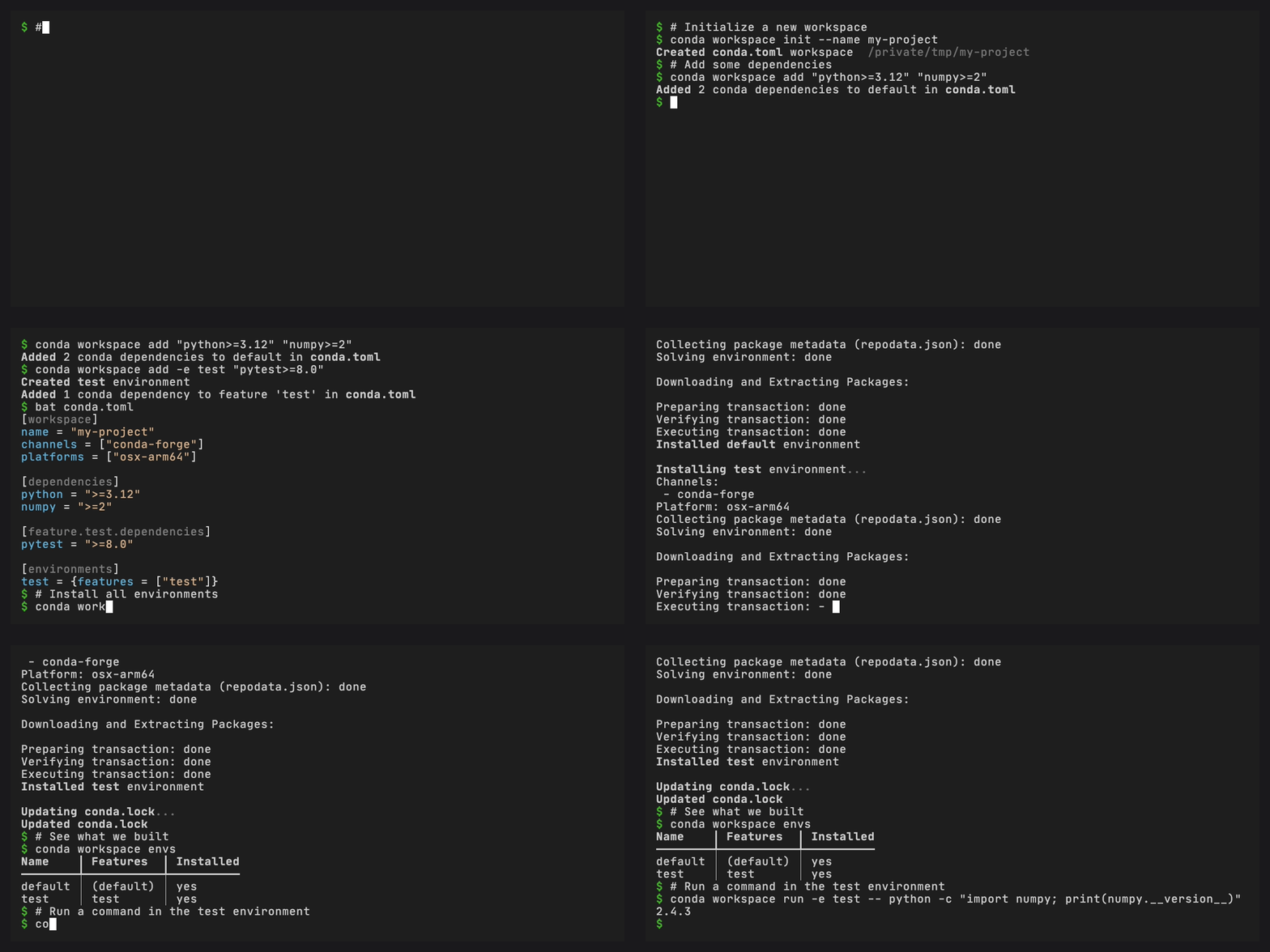
To set up a workspace one step at a time, start with
conda workspace init, add dependencies, then declare a named
environment. Each add installs into the affected environment and
refreshes conda.lock:
conda workspace init --name my-project
conda workspace add "python>=3.12" "numpy>=2"
conda workspace add -e test
conda workspace envs
Or add workspace configuration to a conda.toml by hand:
[workspace]
name = "my-project"
channels = ["conda-forge"]
platforms = ["linux-64", "osx-arm64", "win-64"]

[dependencies]
python = ">=3.10"
numpy = ">=1.24"

[feature.test.dependencies]
pytest = ">=8.0"
pytest-cov = ">=4.0"

[environments]
default = []
test = { features = ["test"] }
[workspace]
name = "my-project"
channels = ["conda-forge"]
platforms = ["linux-64", "osx-arm64", "win-64"]

[dependencies]
python = ">=3.10"
numpy = ">=1.24"

[feature.test.dependencies]
pytest = ">=8.0"
pytest-cov = ">=4.0"

[environments]
default = []
test = { features = ["test"] }
[tool.conda.workspace]
name = "my-project"
channels = ["conda-forge"]
platforms = ["linux-64", "osx-arm64", "win-64"]

[tool.conda.dependencies]
python = ">=3.10"
numpy = ">=1.24"

[tool.conda.feature.test.dependencies]
pytest = ">=8.0"
pytest-cov = ">=4.0"

[tool.conda.environments]
default = []
test = { features = ["test"] }
Tip
cw and ct are available as shorter aliases for conda workspace
and conda task.
Or use the init command to scaffold one:
conda workspace init
# or: conda workspace init --format conda
# or: conda workspace init --format pyproject
Add and remove environments#
Declare a named environment without adding a package:
conda workspace add -e docs
This adds the environment to the manifest, refreshes the complete
conda.lock, and installs .conda/envs/docs. A named environment inherits
the default feature. Compose existing features or create an environment with
no features when needed:
conda workspace add -e test-only --with-feature test
conda workspace add -e isolated --no-default-feature
--with-feature is repeatable. Both options apply only while declaring a new
environment. Supplying package specs keeps the existing behavior and adds
private dependencies to the selected environment:
conda workspace add -e docs sphinx myst-parser
Running add -e NAME without specs for an environment that is already
declared is an error. Use conda workspace install -e NAME to synchronize its
prefix instead.
Remove a complete named environment explicitly with --all:
conda workspace remove -e docs --all
This removes its manifest declaration, all of its conda.lock records, and
its installed prefix. The command rejects the default environment, an
active environment, and environments referenced by tasks. It confirms before
deleting an installed prefix. Pass --yes to skip that confirmation, but
--yes does not replace the required --all flag.
To remove only the generated prefix while keeping the declaration and lock records, use:
conda workspace clean -e docs
Install environments#
conda workspace install
This creates conda environments under .conda/envs/ in the workspace
root for each environment defined in your manifest. A conda.lock file
is generated automatically after solving.
You can select an exact manifest with the global --file / -f
option:
conda workspace --file path/to/conda.toml install
The path must name a manifest file. Omit the option to auto-detect a manifest by searching the current directory and its parents.
To recreate environments from scratch, use --force-reinstall. This also
recreates prefixes when installation uses --locked, --frozen, or CI strict
mode:
conda workspace install --force-reinstall
The flag does not force a new solve. Combine it with --no-lock when both a
fresh solve and prefix recreation are required.
To preview a workspace change without writing it, pass --dry-run:
conda workspace quickstart "python>=3.12" --dry-run
conda workspace add "pandas>=2" --dry-run
conda workspace install --force-reinstall --dry-run
conda workspace lock --dry-run
A preview may parse manifests, validate inputs, and run the solver. It
does not modify manifests, lockfiles, environment prefixes, activation
metadata, archives, receipts, or extraction targets, and it does not
modify configured package caches. quickstart validates a temporary
prospective manifest and discards it afterward.
Lock#
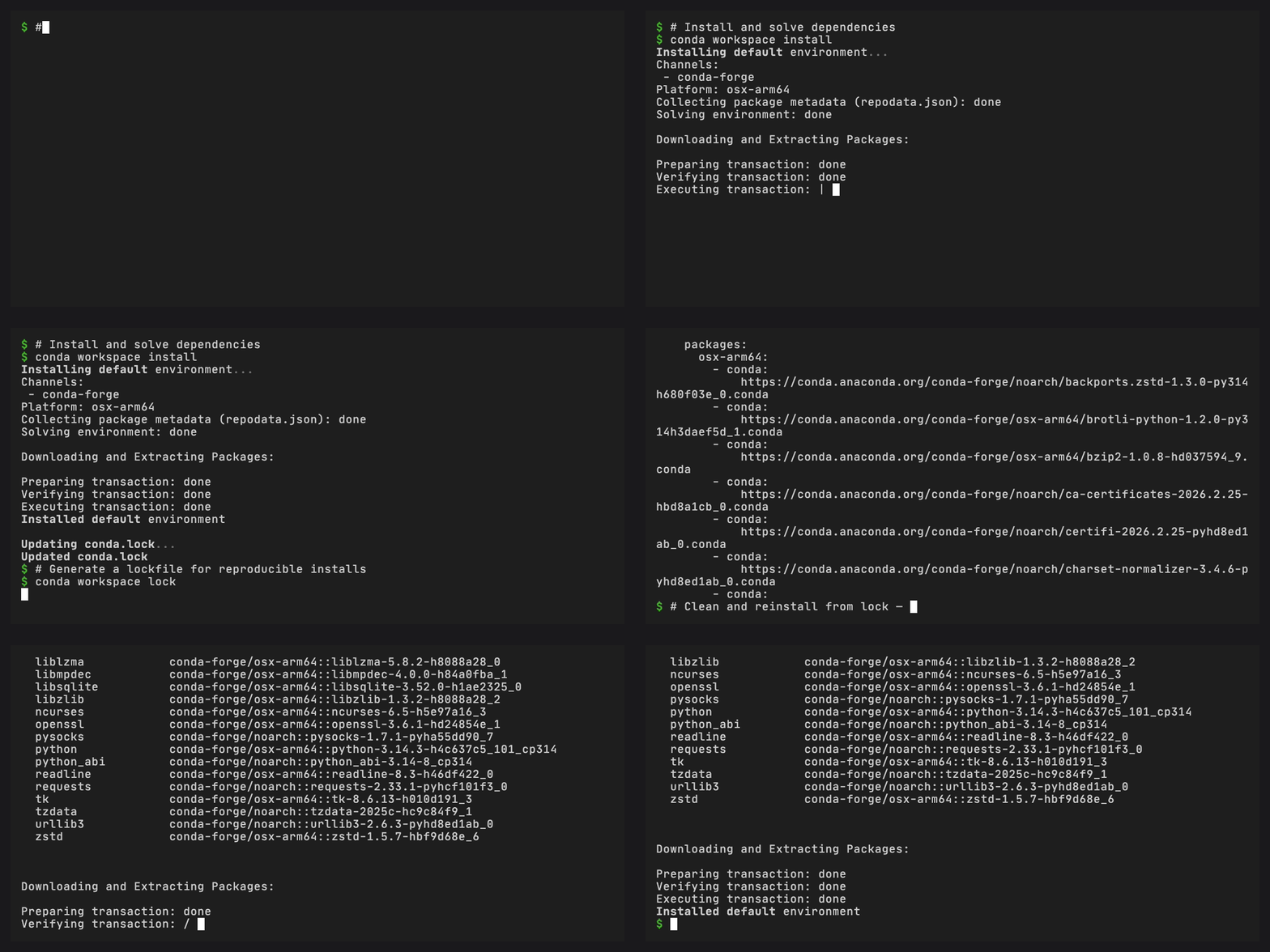
The conda workspace lock command runs the solver and records the solution in
conda.lock without installing any environments:
conda workspace lock
Reproducible installs#
Use --locked to install from the lockfile. This validates that the
lockfile is still fresh relative to the manifest. If the manifest has
changed, the install fails:
conda workspace install --locked
Freshness also requires the manifest and lockfile to contain exactly the same environment names. A lockfile that still contains a removed environment is stale.
Use --frozen to install from the lockfile as-is, without checking
freshness:
conda workspace install --frozen
Run in workspace environments#
Once your workspace is installed, run tasks in specific environments:
conda task run -e test pytest -v
Run a one-shot command in an environment:
conda workspace run -e test -- python -c "import numpy; print(numpy.__version__)"
Or spawn an interactive shell:
conda workspace shell -e test
Add and remove dependencies#
Changed in version 0.4.0: conda workspace add / remove now install into the affected
environment(s) and refresh conda.lock by default (matching
pixi add / pixi remove). Use --no-install to update the
manifest and lockfile without touching the prefix, or
--no-lockfile-update for the previous manifest-only behaviour.
conda workspace add numpy
add and remove update the manifest, install into the affected
prefixes, and refresh a complete conda.lock in one step, matching
pixi add / pixi remove.
For conda workspace add, a bare package name preserves an existing
declaration. An explicit MatchSpec replaces the whole declaration, and
rich fields such as channel or build are written as an inline
table. Use an explicit wildcard such as numpy=* to clear prior
constraints. Unsupported MatchSpec fields fail before the manifest is
written. If the existing entry is { workspace = true }, a bare add
keeps that marker. An explicit spec replaces only that membership entry
and leaves [workspace.dependencies] unchanged.
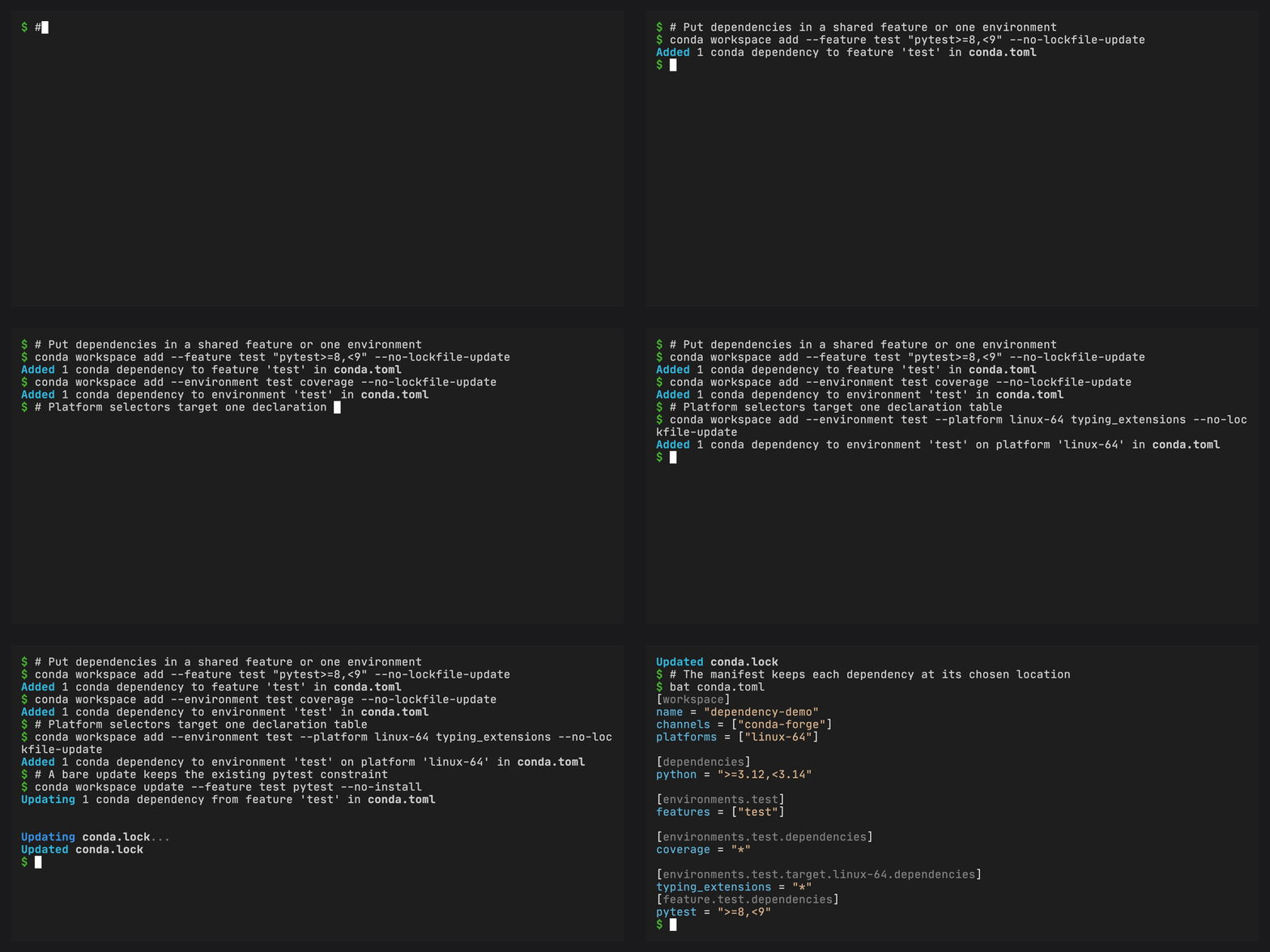
Add to a specific feature (only prefixes for environments composing that feature are installed or updated):
conda workspace add --feature test pytest
Add a dependency directly to one environment without changing its shared features:
conda workspace add --environment test coverage
--feature and --environment are mutually exclusive. Environment
dependencies are written below [environments.<name>], and only that
prefix is installed. --platform composes with either selector and
addresses a target table below the selected location. The complete
mapping is in the dependency mutation rules.
For example:
conda workspace add --platform osx-arm64 llvm-openmp
conda workspace add --feature test --platform win-64 "pytest<9"
conda workspace add --environment test --platform win-64 pywin32
Add a PyPI dependency:
conda workspace add --pypi requests
Remove a dependency:
conda workspace remove numpy
Update one or more declared conda roots without replacing their manifest constraints:
conda workspace update numpy scipy
Like add and remove, update addresses one exact declaration
location. Use --feature, --environment, and --platform for named
feature, private environment, and target-specific declarations:
conda workspace update --feature test pytest
conda workspace update --environment test coverage
conda workspace update --platform win-64 pywin32 --no-install
Bare names preserve existing constraints. Explicit MatchSpecs replace
the selected declaration. update manages conda dependencies only, updates
affected installed host prefixes, and leaves uninstalled prefixes absent.
A normal update requires at least one affected host prefix to be installed.
Use --no-install when none is installed or for a lock-only update, including
a target that does not match the host.
Removal clears direct prefix requests that are absent from the resolved
manifest before installing the remaining dependency closure. A removed
package stays installed only when another dependency requires it.
Lock generation does not inherit stale prefix requests, including when
--no-install leaves the existing prefix unchanged. A later
conda workspace install reconciles that prefix to the lock. Conda
packages added directly to a workspace prefix are removed when they
are absent from the lock, so declare additions in the manifest.
If you want the old manifest-only behaviour, or to stage a batch of edits before running the solver, opt out per command:
conda workspace add numpy --no-install            # update manifest + complete conda.lock, skip install
conda workspace add numpy --no-lockfile-update    # update manifest only
conda workspace add numpy --force-reinstall       # recreate the affected env(s) from scratch
conda workspace add numpy --dry-run               # solve only, touch nothing on disk
Running add or remove from inside conda workspace shell works,
but an already-activated shell will not pick up new entries under
$PREFIX/etc/conda/activate.d/. The command prints a hint asking
you to exit and re-run conda workspace shell when that happens.
List packages and environments#
conda workspace list              # packages in default env
conda workspace list -e test      # packages in test env
conda workspace envs              # list defined environments
conda workspace envs --orphans    # list installed, undeclared prefixes
An orphan can remain after an interrupted removal or a manual manifest edit.
Inspect its exact path with envs --orphans, then remove only that prefix with
conda workspace clean -e NAME.
Workspace overview#
conda workspace info
conda workspace info -e test      # details for a specific environment
conda workspace info --json       # complete machine-readable snapshot
conda workspace info --json --packages  # include installed package records
Next steps#
Read about features to learn how environments and tasks work
See the configuration reference for all manifest options
Follow the tutorials for step-by-step guides