
Use project-aware completions#
This tutorial shows how conda-completion uses files in your current project to complete environment names, task names, channels, and package specs.
You do not need to regenerate the completion manifest when project files change. The Rust completer reads lightweight project context on each TAB press and caches parsed files by mtime and size.
Before you start#
Install and activate conda-completion first:
conda install -c conda-forge conda-completion
conda completion install
Open a new shell, or source the RC file printed by conda completion install.
Create a small project#
Create a directory with an established conda environment file:
mkdir conda-completion-demo
cd conda-completion-demo
cat > environment.yml <<'EOF'
name: docs-demo
channels:
  - conda-forge
dependencies:
  - python
  - numpy
EOF
Now complete an environment value:
$ conda install --name <TAB>
docs-demo
The same candidate appears anywhere conda’s argparse metadata exposes an
environment option such as --name or --environment.
Add richer project metadata#
Some conda ecosystem tools are exploring richer workspace manifests with
named environments and tasks. conda.toml is the manifest used by
conda-workspaces;
it is an emerging project format, not a formal conda standard.
Add a conda.toml file:
channels = ["conda-forge"]

[environments]
dev = {}
docs = {}

[tasks]
test = "pytest"
docs = "sphinx-build -b dirhtml docs docs/_build/dirhtml"
Complete the environment names again:
$ conda install --name <TAB>
dev  docs
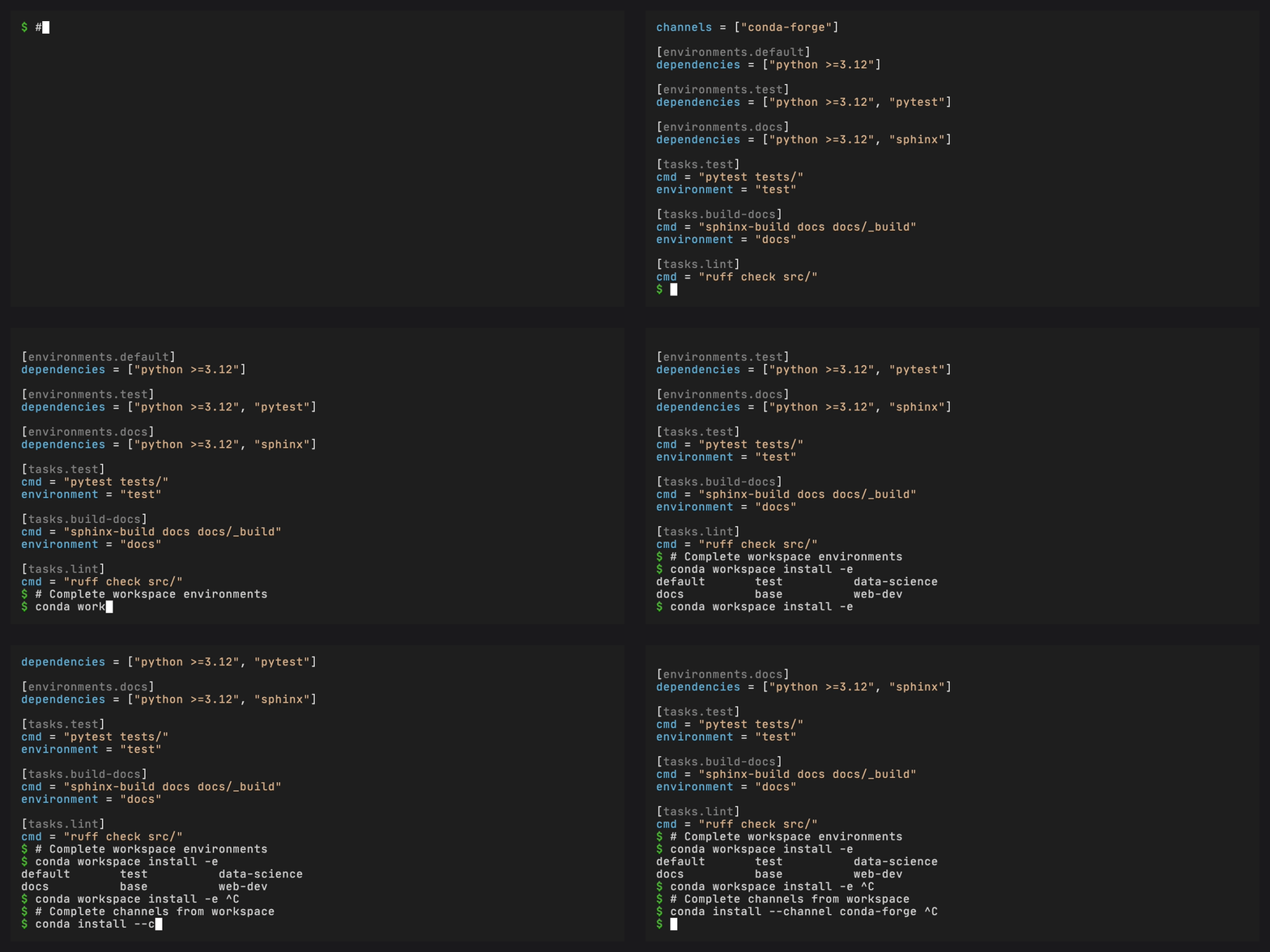
When a workspace-style file such as conda.toml exists, it takes
precedence over nearby environment.yml files because it describes the
whole workspace rather than a single exported environment.
Try plugin commands#
If you use a plugin that registers project commands, the same context is
available there. For example, after installing conda-workspaces:
conda install -c conda-forge conda-workspaces
Try completing plugin arguments:
$ conda workspace install --environment <TAB>
dev  docs

$ conda task run <TAB>
test  docs
The command tree comes from conda’s plugin system. The dynamic values come from the project files in your working directory.
Complete channels and package specs#
Channel values come from project files and conda configuration:
$ conda install --channel <TAB>
conda-forge
Package names come from conda repodata collected during manifest generation:
$ conda install num<TAB>
numpy  numba  numexpr
Version completion starts after an equals sign:
$ conda install numpy=<TAB>
numpy=2.3.0  numpy=2.2.6  numpy=2.1.3
Type at least part of a package name before pressing TAB. Expanding the full package universe on an empty package word would be noisy and slow in real shells.
Change files and try again#
Edit conda.toml:
[environments]
dev = {}
docs = {}
bench = {}

[tasks]
test = "pytest"
docs = "sphinx-build -b dirhtml docs docs/_build/dirhtml"
bench = "pytest --benchmark-only"
Complete again:
$ conda install --name <TAB>
bench  dev  docs

$ conda task run <TAB>
bench  docs  test
No conda completion generate step is needed for project file edits.
What files are read#
The completer walks upward from the current directory, stopping at common
VCS roots such as .git. It reads:
conda.tomlpixi.tomlpyproject.tomlsections for conda or pixianaconda-project.ymlconda-project.ymlenvironment.ymllockfiles next to a project file
See Completer binary for the exact discovery order.