
Quick start#
Get conda tab completion working in under a minute.
Prerequisites#
conda 25.1 or later
A supported shell: bash, zsh, PowerShell, or fish
condaavailable in new shell sessions
If conda is not available in a fresh terminal, run
conda init for your shell first,
restart the terminal, and continue.
Install#
conda install -c conda-forge conda-completion
pixi global install conda-completion
Activate completion#
conda completion install
This auto-detects your shell, generates the completion manifest, and
adds a hook to your shell’s RC file. Preview what it will do with
--dry-run:
conda completion install --dry-run
Tip
To target a specific shell, pass it explicitly:
conda completion install zsh
If you are building a container, working offline, or only need command and flag completion, skip package metadata during setup:
conda completion install --yes --no-repodata
Try it out#
Open a new shell (or source your RC file) and press TAB:
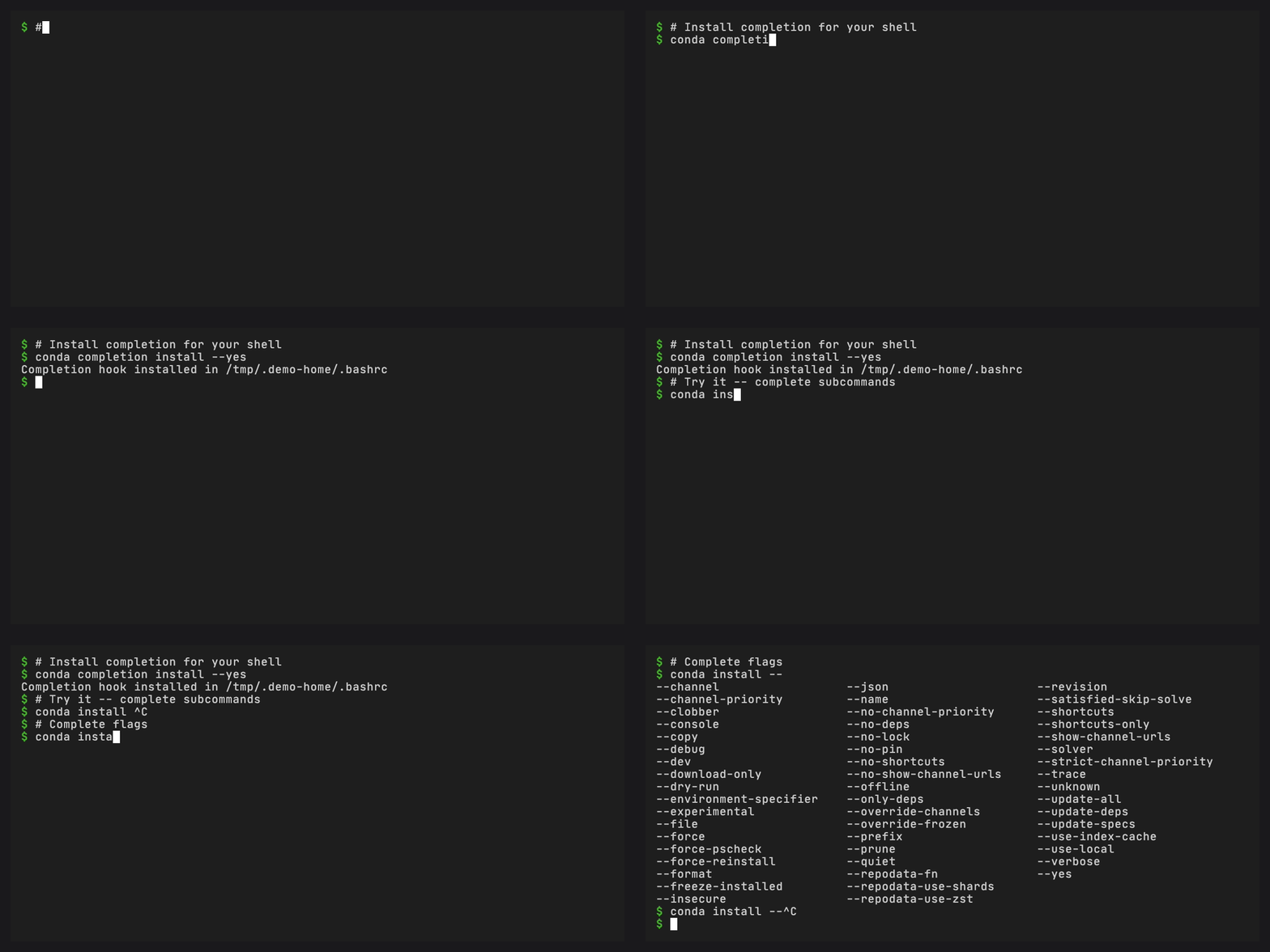
$ conda ins<TAB>
install   -- Install a list of packages into a specified conda environment

$ conda install --<TAB>
--channel     -- Additional channel to search for packages
--dry-run     -- Only display what would have been done
--name        -- Name of environment
...
If a plugin such as conda-workspaces is installed, plugin subcommands
come from the same generated manifest:
$ conda workspace <TAB>
activate  add  archive  clean  envs  export  import  info  init  install ...
Check the generated files and runtime binary:
conda completion status
What’s next?#
Tutorials for per-shell walkthroughs, project-aware completion, and migration guides
Diagnose and repair completion problems when completion does not behave as expected
Reference for the CLI command reference and manifest format
Scope and tradeoffs for what is completed and what is intentionally out of scope