
Managing plugins#
This tutorial covers the complete lifecycle of conda plugins in a protected base environment: installing, updating, and removing them.
Prerequisites#
conda-self installed in base (
conda install -n base conda-self)Base environment protected (see Protecting your base environment)
Install a plugin#
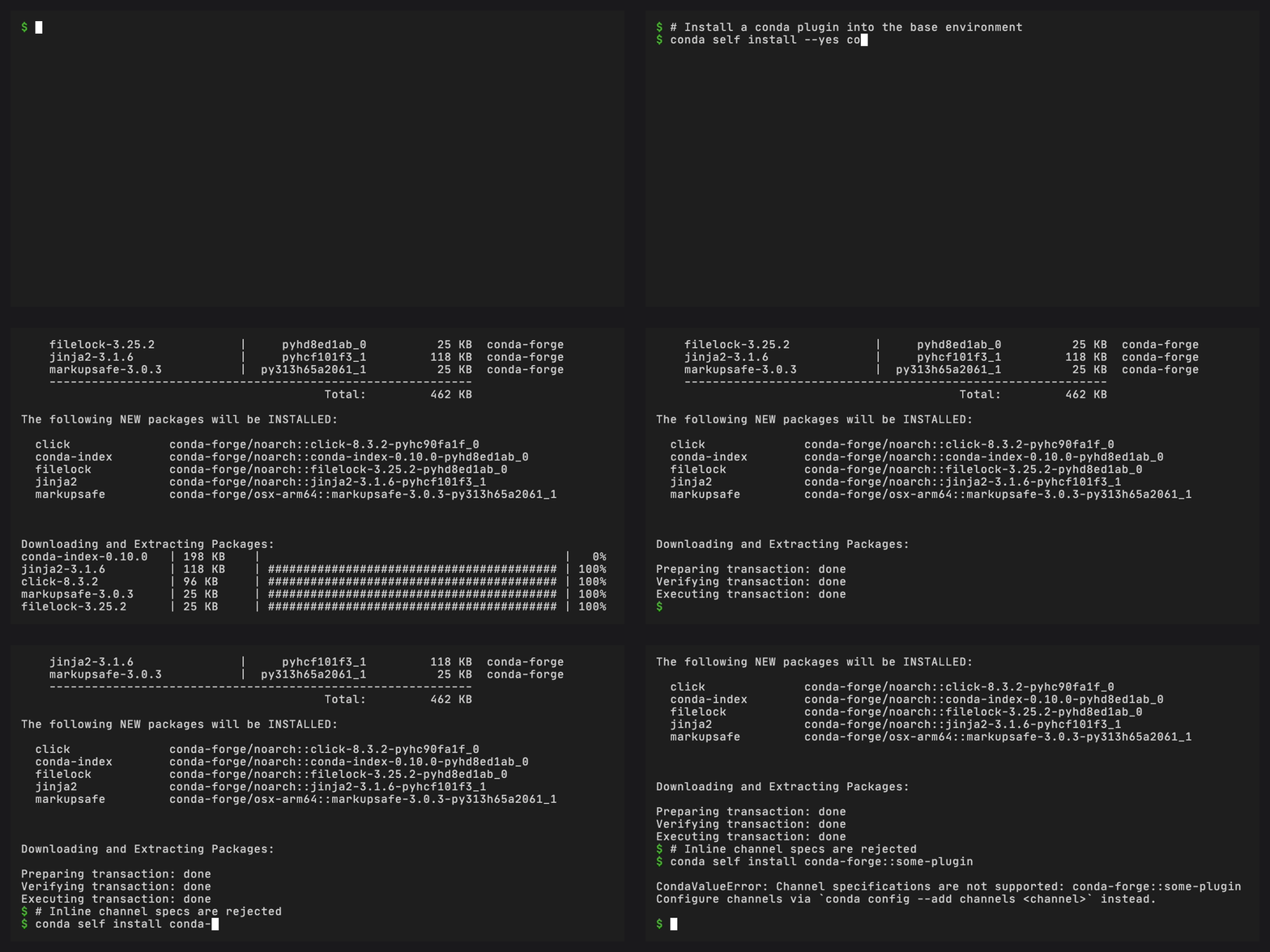
conda self install conda-index
conda-self runs conda install as a subprocess with
--override-frozen, then validates that the installed package is
a real conda plugin by checking its entry points. If validation
fails, the package is automatically uninstalled.
Multiple plugins at once#
conda self install conda-index conda-auth
Update plugins#
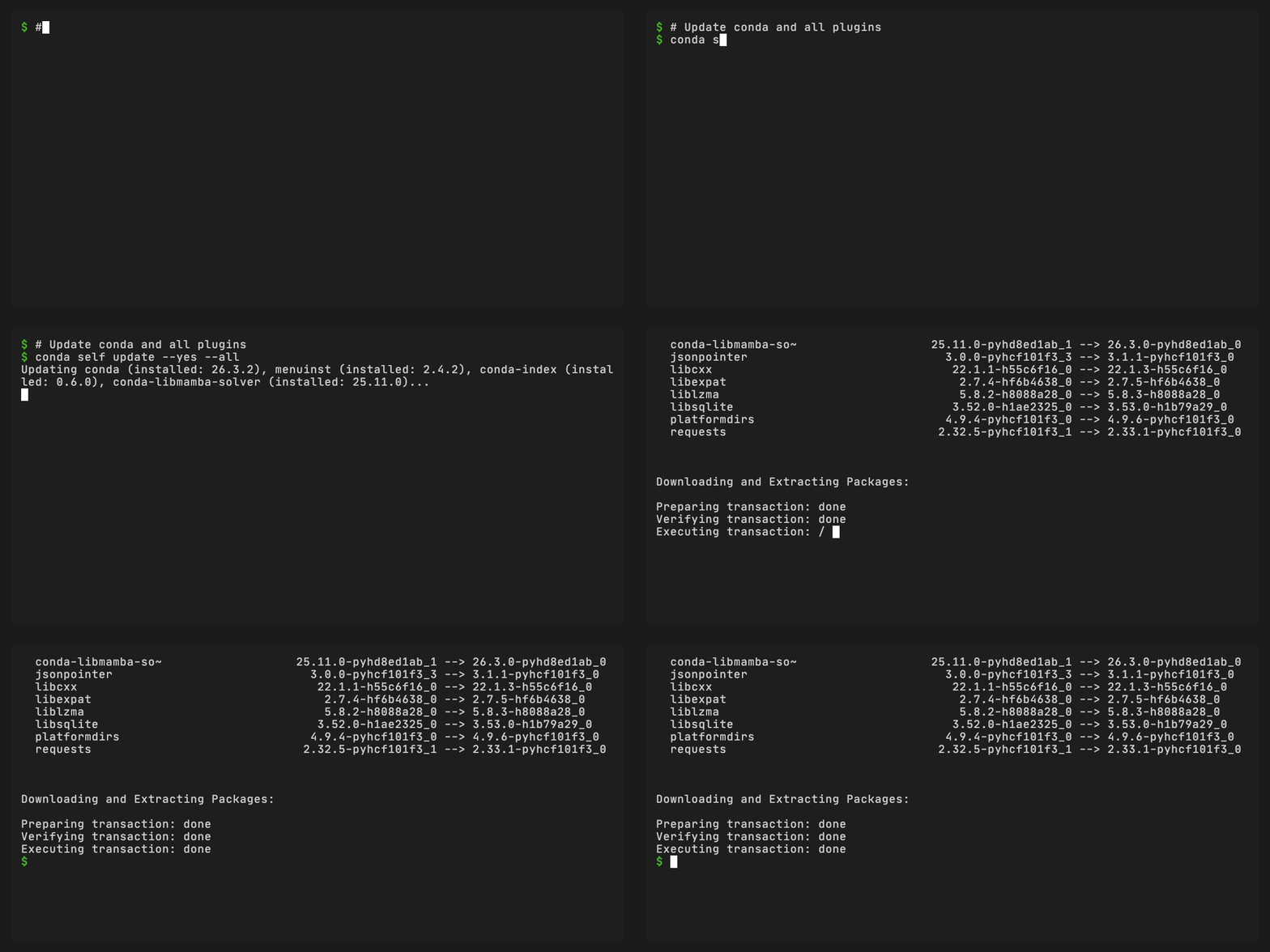
Update all plugins and conda itself:
conda self update
Update specific packages:
conda self update conda
Force reinstall everything:
conda self update --force-reinstall
The solver finds the latest compatible versions automatically. No manual version pinning is needed.
Remove a plugin#
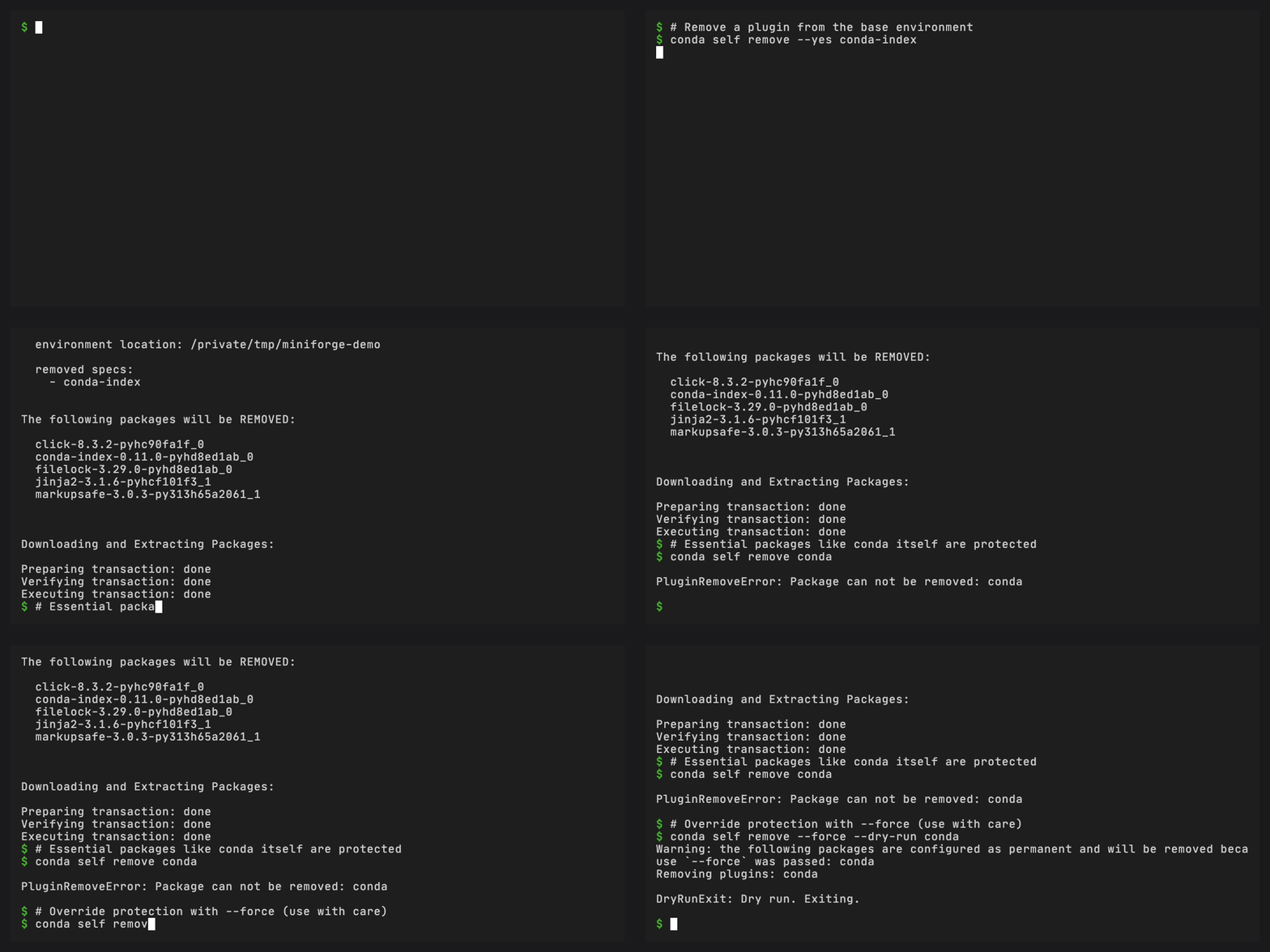
conda self remove conda-index
Essential packages (conda, its core dependencies) cannot be removed.
If you try, you will see a SpecsCanNotBeRemoved error.
Channel configuration#
conda-self uses your configured channels. Use conda config to add or change channels before installing. To install plugins from a custom channel:
# Add the channel first
conda config --add channels my-channel -n base

# Then install
conda self install my-plugin
Inline channel specs (conda-forge::my-plugin) are not supported
and will produce an error. This keeps channel configuration
consistent across all operations.
Verify installed plugins#
After installing, you can verify which plugins are registered with conda info:
conda info
The output includes a “plugins” section listing all discovered conda plugins and their versions.
Next steps#
Resetting the base environment – Restore base from a snapshot
Using custom channels – Use custom channels for plugins
CLI reference – Full CLI reference